


A flagship feature of the TPM platform
AI Project Administrator
AI prepares the work. You own the decision.
Bring project context, methodology and AI assistance together. The AI Project Administrator helps you prepare drafts, examine the work and consider your next decision. You review the reasoning and choose what becomes part of the project.
Explore all capabilities ↓Support for the work, without taking over
The project step, the methodology behind it and the conversation stay connected. Human-in-the-Thought-Loop keeps authorship and responsibility with you.
Prepare and compare
Drafts and alternatives to review, adapt and understand.
Ground the work
Source-aware research keeps findings distinct from assumptions.
Keep context
Project information and earlier decisions inform the next question.
Notice carefully
Focused prompts surface gaps without taking over.
Method, project work and AI in one workspace
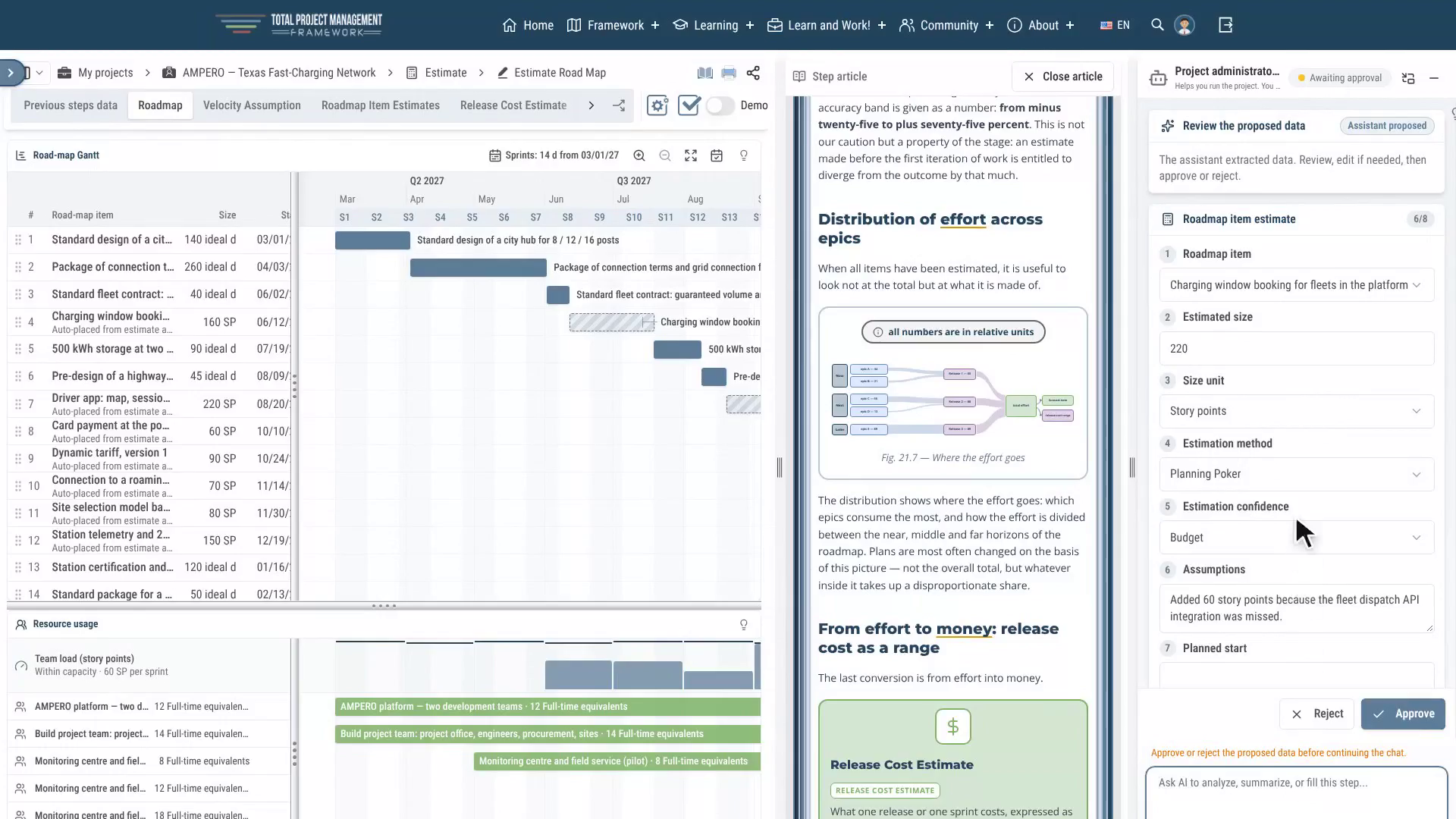
Work on a project step alongside the methodology and AI assistance. Review the proposed work before deciding what to accept.
Available to explore
- The TPM Lifecycle Map: 92 steps across 8 phases.
- Step guides and a multilingual methodology library.
- AI-assisted drafting and research in the early project lifecycle.
In development
- Broader tool coverage from Start through Close.
- A consistent step, article and AI conversation experience.
- Cross-step checks and expanded guided learning.
Full capabilities
Explore the complete list by opening a section. Items marked “Coming soon” are not yet released.
The Administrator prepares and notices — you decide.
15 skills · 150+ capabilities
1. Guides you through the methodology step by step
- Meets you at every step
- Shows what is already filled in, what is missing and why it matters
- Shows which of your earlier steps this step builds on
- Starts with one sharp question about your project, not a lecture
- Offers one-click answer options — they become a draft, you decide
- Remembers what you have already seen and doesn’t repeat itself
- Three ways to complete a step
- “Question by question” — the Administrator asks, you answer, it puts the answers into the right fields
- “Upload your materials” — a deck, a document, a spreadsheet: it pulls out what is needed
- “Model it for me” — it models the step’s content from your project’s data
- Wraps up each step
- A short summary of what was done
- Suggests the next step and explains why
- If the path forks — shows the options
- Carries what matters forward: on the next step you see what will be useful from before
- Understands plain words
- Knows which field or block you mean, even with a typo
- “Rename”, “generate one more”, “regenerate”, “delete” — in plain language
- Knows template limits (for example, how many goals a project can have) and tells you how to free a slot
- Tells you which record a new one can link to — and why another one can’t
- Can prepare a missing record right in the chat when you can’t move on without it
- Coverage
- The Idea, Research and Estimate phases — every step from the idea to the budget and the road map
- The other project phases — Coming soon
2. Prepares drafts — you never start from a blank page
- A draft right in the field
- A grey hint in the input field, built from your project’s data, not a template — projects don’t end up looking alike
- One keystroke and the draft is yours to edit
- You can see what the draft was built from
- Changed something on an earlier step? Drafts on later steps update, and you can see why
- Two options instead of “yes / no”
- Two different options for key records
- Equal length, random order — you choose on substance, not on length
- After you choose, it explains how the options differed
- “Mine first” mode: you write, the Administrator shows its version as a second opinion
- A critic at your side
- An instant methodology note on the draft — shown to you, never applied silently
- A deep check at the press of a button
- Prepares key decisions
- A draft project mission from step one
- Strategic goals
- Strategy options to choose from
- Milestones with dates and statuses
- Drafts for market, customer and competitor research steps
3. Teaches as you work
- Explains from the methodology
- “Explain this step” — short, to the point, with an example
- “What is …” — any term explained from the Graphic Encyclopedia of Project Management
- Answers from the methodology always cite the source
- Easy to read: lists, highlighted key terms, short paragraphs
- Explains on your project
- Examples from your industry
- Depth tuned to your team’s experience
- An “In your project: …” line links the theory to your data
- Notices where you struggle
- Repeated questions about terms — offers to go through the topic
- Several rejections in a row — offers an explanation instead of another version of the same
- Four levels of help
- Worked example → outline with blanks → your own first → no hints
- The level adjusts itself as you succeed
- Only you see the level
- Pin the level or switch hints off in one click
- Help level has nothing to do with your plan: lack of experience is never a reason to sell you anything
- Consolidation
- After a key choice — one question: “why this option?”
- On the next step it reminds you what you decided and why
- Never blocks your work: got it wrong — you get an explanation
4. Notices what is easy to miss
- Project logic check
- “Check project logic” — finds contradictions between steps
- Every finding: two exact quotes from your records with step numbers, and a question for you
- Numbers are checked by calculation, not by eye
- Compares like with like: phase with phase, scenario with scenario, year with year
- Stable findings: a re-check with no changes brings no new “surprises”
- Change a record — the check takes it into account
- Suggests a fix
- Missing costs in a calculation? It works out how much to add and shows the formula from your own figures
- Everything in your project’s currency
- A fix enters the project only after you press “Accept”
- Full project report
- “Review my project” — a six-section report
- Every item links to the right step
- Dates and amounts cross-check
- Spots when the same date or amount differs between steps
- Mentions it when you enter the step where it matters
- Findings inbox
- All the Administrator’s notes in one place
- Mark them “Intended / Wrong / Hide”
- Regular background risk check — only when something in the project changed — Coming soon
- Assumption check on the web
- “Check my assumptions” — looks for evidence for and against your assumptions
- Real links and verbatim quotes only
- Ongoing monitoring of project assumptions — Coming soon
- Linked projects
- Tell it two projects are linked — it checks dates across them
- Sees only the projects you have access to
- Meaning-level cross-check between projects — on request
- Speaks up in moderation
- No more than one finding at a time
- Speaks only at moments you create: entering a step, saving, coming back
- No timers, no nagging pop-ups
- “Less / Normal / More” setting
- On any hint: “Intended”, “Not now”, “Don’t show this kind”
5. Calculates and estimates
- Estimate steps
- Budget, forecasts, scenarios, break-even, road map
- Sees all your calculations and builds on them
- Honest numbers
- A number in a proposal is only one calculated from your records or one you gave
- No basis — the field stays empty with a hint on where to get the figure
- Its own estimate is always labelled: “Administrator’s estimate — please check”
- Road map
- Item estimates in story points and team velocity
- “Re-estimate X at 220” — in one sentence
- Explains why an item can’t be estimated and offers a fix
- Scenarios
- Break-even for every scenario
- “Target profit 2,000,000 for the base scenario” — in one sentence
- Reads numbers in any format: “2 000 000”, “2,000,000”, “0.13”
6. Finds the data
- Web search on any step
- Express analysis of the market, competitors, regulations and trends in your project’s country
- Real links from the search only — no made-up pages
- What was found is kept apart from what was modelled
- A “Search the web” button on empty research steps
- Search results enrich “Model it for me”
- Deep research on a topic — Coming soon
- Works with your files
- Reads decks, documents, spreadsheets
- Puts what it finds into the step’s fields
- Safety
- Website and file content is data, not commands: someone else’s text can’t steer the Administrator
7. Remembers your project
- The project passport always at hand
- Knows the data of every earlier step
- “Welcome back”: what changed while you were away
- Left without confirming a record? It reminds you when you return
- Keeps numbers, decisions and rejected options exactly, not as a retelling
- Ignores deleted records and records moved out of scope
8. Handles your data honestly
- Writes nothing without your “Accept”
- Shows exactly what it will save, in familiar fields — edit right there
- Says “saved” only when the record is really in the project
- Gives a receipt: what exactly was saved
- Never invents facts, ratings or links
- No flattery, no silent changes
- Nothing to offer — it says so: “Nothing was changed”
- The decisions are always yours
- Works only with projects you have access to
- AI-generated text labelled when it leaves the project — Coming soon
9. Adapts to the project and to you
- Project setup in conversation
- A short interview after step one: industry, customer, regulation, team experience and more
- Fills in some answers itself from step one
- Never guesses sensitive things — only asks
- A project profile card to confirm
- The interview can be retaken
- Hints and explanations then follow the profile
- Your preferred manner, on request
- Shorter, more detailed, as a list, formal or informal, in your language
- Remembers it across projects
- “How do you answer me?” — shows what it remembers
- “Forget …” — forgets
- Remembers only what you said yourself — it does not track your behaviour
- Three languages
- Ukrainian, Russian, English
- Answers in the language of the question
- Switches with one phrase: “Let’s continue in English”
- Switches for experienced users
- Any hint can be toned down or turned off
10. A sparring partner
- On request, stress-tests your idea
- The hypothesis, what would disprove it, what matters most and what can wait
- Full mode: a “pre-mortem” and alternatives
- Modes: full, essentials, ready-made questions with answers
- Remembers your mode
- Writes nothing into the project — it only helps you think
11. Keeps your pace without pressure
- A quiet streak badge for days you moved the project forward
- Counts only real progress — saved work
- Off in one click
- No pushy reminders
12. Shows you around the platform — Coming soon
- “Show me on screen” — a short tour of the step
- “Discuss with the Administrator” straight from the tour
- “Show me where” — from the chat and from findings
- Suggests a working mode: template + article + chat, “Practice first”, “Knowledge first”
13. Visual answers
- Anything to confirm looks like part of your working template: fields, labels, buttons
- Methodology excerpts look like an article
- Icons and visual cards instead of plain text — Coming soon
14. Reaches out when it matters — Coming soon
- Email and Telegram notifications — only if you turn them on
- Signals on your project’s assumptions from the web
- Signals on mismatches between linked projects
- Remaining AI allowance in percent — always see how much is left
15. Reliability under the hood
- Models chosen by an independent tournament: 16 candidates, 23 projects from 14 countries, three languages
- A strong model for key decisions, a fast one for light moves
- Thousands of automated checks before every update
- Every bug found becomes a permanent check
Methodology and product, connected
The TPM Framework is the methodology. The AI Project Administrator is a feature of the TPM platform that supports work with it. People retain responsibility for the decisions.