
Total Project Management Framework
Home

Framework

  • Framework overviewTotal Project Management Framework
  • TPM Lifecycle MapOne system, from the whole project to each method
    • Project Steps
    • Tool Levels

TPM platform

  • AI Project AdministratorFlagship feature of the TPM platform

Approach

  • Human-in-the-Thought-Loop Paradigm
  • Human-in-the-Thought-Loop Manifesto
  • Research & Evidence
Map the work.See the whole project and choose your next step.

Learning

  • Learning with TPM
  • All courses
  • Become an instructor

Course categories

  • Marketing and Sales
  • Finance and Investment
  • Project Management
  • Art and Design
  • IT and Programming
  • Personality Development

Instructors

  • Our instructors
  • Claudia Martínez
  • Emily Johnson
  • May Soon
  • Mirko Vuchkovich
  • Oleksandr Ivanov
  • Ryan Smith
Back to schoolImprove your skills every day – learn from industry leaders!

Learn and Work!

  • Log In
  • Membership Levels
Learn and Work!Improve your skills every day – learn from industry leaders!

Blog

  • All articles
  • Marketing and Sales
  • Finance and Investment
  • Project Management
  • Art and Design
  • Personality Development

Events

  • All eventsWorkshops and conversations
  • Share your expertiseExplore becoming an instructor
Bring your experienceArticles, events and people of the TPM community.
  • About TPMThe system, founder and team
  • Founder
  • Training cases
  • Team
  • Contact TPM
People behind TPMFounder, team and educational practice.
  • English
  • Русский
  • Українська
    • TPM header AI layout (CSS)

    • TPM shared footer navigation

    Home
    System

    Framework

    • Framework overviewTotal Project Management Framework
    • TPM Lifecycle MapOne system, from the whole project to each method
      • Project Steps
      • Tool Levels

    TPM platform

    • AI Project AdministratorFlagship feature of the TPM platform

    Approach

    • Human-in-the-Thought-Loop Paradigm
    • Human-in-the-Thought-Loop Manifesto
    • Research & Evidence
    Learning

    Learning

    • Learning with TPM
    • All courses
    • Become an instructor

    Course categories

    • Marketing and Sales
    • Finance and Investment
    • Project Management
    • Art and Design
    • IT and Programming
    • Personality Development

    Instructors

    • Our instructors
    • Claudia Martínez
    • Emily Johnson
    • May Soon
    • Mirko Vuchkovich
    • Oleksandr Ivanov
    • Ryan Smith
    Learn and Work!

    Learn and Work!

    • Log In
    • Membership Levels
    Community

    Blog

    • All articles
    • Marketing and Sales
    • Finance and Investment
    • Project Management
    • Art and Design
    • Personality Development

    Events

    • All eventsWorkshops and conversations
    • Share your expertiseExplore becoming an instructor
    About
    • About TPMThe system, founder and team
    • Founder
    • Training cases
    • Team
    • Contact TPM

    Practitioner

    7
    • Create and find your first TPM project
    • Use the step workspace, article and AI panels
    • Work with the AI Project Administrator
    • Find courses and follow your learning
    • Understand membership, AI access and course access
    • Find your way around My workspace
    • Resolve common navigation and access problems

    Instructor

    5
    • Open the Instructor Panel and prepare a course
    • Build a course curriculum
    • Set course assessment and completion rules
    • Set course duration and downloadable materials
    • Set a course price and review publication
    Help Centre
    Instructor

    Set course assessment and completion rules

    ← All help topics · Instructor

    English · Русский · Українська

    Choose the rule that matches the evidence of learning you want, then check the threshold and the required activities.

    Instructions for:Choose Desktop or Mobile. Both versions are available below when JavaScript is disabled.

    On desktop #

    1. Open the course and choose Settings → Assessment.
    2. Read the available Evaluation options. Select the method appropriate to the course: lessons, the final quiz, passed quizzes, questions, marks or the final assignment.
    3. Check that the required quiz or assignment actually exists in the curriculum.
    4. Set Passing Grade (%) where the selected method shows this field. When evaluating by the final quiz, check the passing grade in that quiz’s Settings.
    5. Save the intended settings and preview the course information. Tell learners what they must complete and what they must pass.
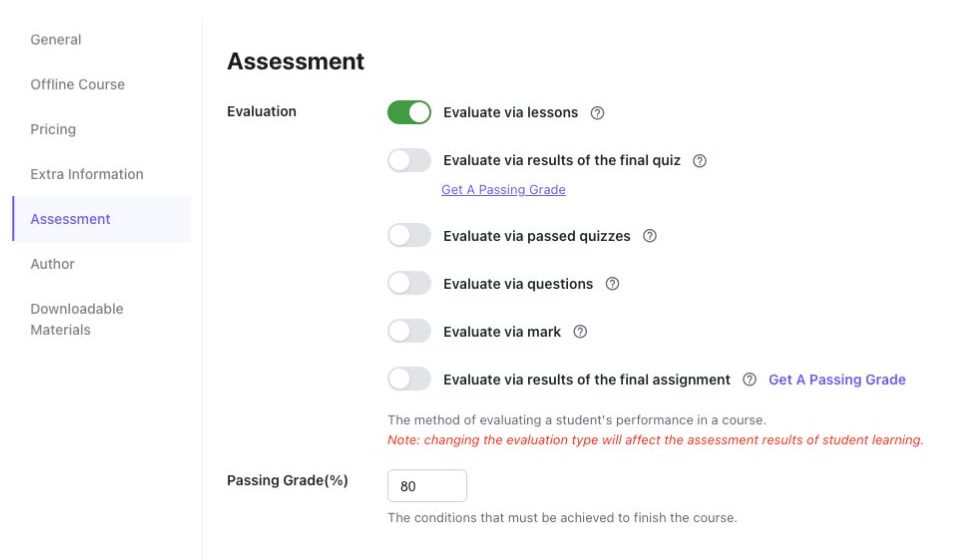
    Course Evaluation options and Passing Grade field
    Assessment settings. The displayed percentage belongs to the demonstration course. Select the image to enlarge it.

    On mobile #

    Use a desktop browser for course authoring while the mobile editing controls remain limited. Select Desktop above to read the editing instructions and watch the recording.

    Completion is different from passing #

    Finishing the content and meeting the passing rule are separate questions. My Courses exposes Finished, Passed and Failed states. Describe both the required activities and the evidence needed to pass so that learners understand the result.

    Retakes and the finish button #

    Under Settings → General, inspect Re-take Course and Finish button. The retake control specifies the permitted number of attempts; zero disables retakes. The finish-button option can allow finishing after all items are complete even when the assessment has not been passed. Choose this deliberately.

    Changing an active course #

    The editor warns that changing the evaluation method affects learners’ assessment results. Review the consequences before changing a course with active learners. A new method should not be treated as a cosmetic update.

    Build a single-choice knowledge check #

    1. In the course’s Curriculum, add a New Quiz and give it a title that describes the check.
    2. Open the quiz using Edit in popup. Add each question as Single Choice. Write the complete question and give each answer a distinct, plausible meaning.
    3. Mark the one correct answer for each question. For example, “commuters will pay the proposed price” is an assumption to test, while a measured collection-time result is an observation.
    4. Review the quiz settings. In this two-question example, Passing Grade is 100%, one retake is allowed, and review with correct answers is enabled. Use rules appropriate to your own course.
    5. Choose Update, close the editor and reopen it. Check the answer text and selected correct answer for every question.
    6. In course Settings → Assessment, choose final-quiz evaluation when the final quiz is the intended course assessment. Check the quiz’s own passing rule: the course-level percentage field is not shown for this choice.
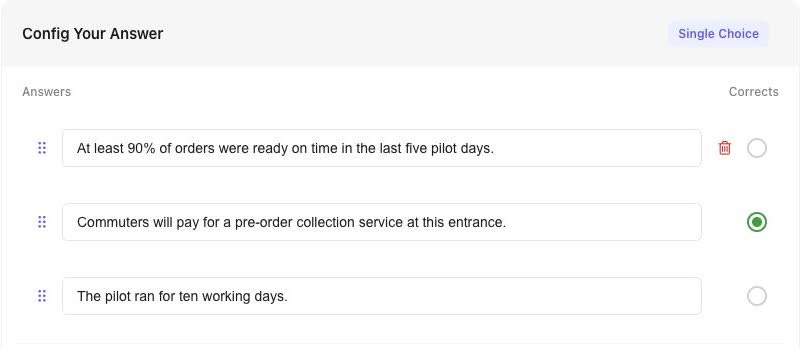
    Three single-choice answers with the assumption selected as correct
    For “Which statement is an assumption to test?”, the proposed willingness to pay is selected. Select the correct-answer circle beside the intended answer.

    Use the desktop quiz editor for configuring questions and assessment rules.

    Creating a quiz and saving its settings does not verify the learner’s result. Before inviting learners, complete a separate learner test from enrolment through submission and review.

    Interface reviewed on 12 November 2026. Screens shown are from the development environment.

    Previous guideBuild a course curriculumNext guideSet course duration and downloadable materials
    What are your Feelings

    Share This Article :

    • Facebook
    • X
    • LinkedIn
    • Pinterest
    Still stuck? How can we help?

    How can we help?

    Updated on 13.11.2026
    0%
    Table of Contents
    • On desktop
    • On mobile
    • Completion is different from passing
    • Retakes and the finish button
    • Changing an active course
    • Build a single-choice knowledge check

    More help

    • Open the Instructor Panel and prepare a course
    • Build a course curriculum
    • Set course duration and downloadable materials
    • Set a course price and review publication
    Total Project Management Framework

    Map the work. Run the steps. Own the decision.

    Framework

    Framework overviewTPM Lifecycle Map
    • Project Steps
    • Tool Levels

    Approach

    ParadigmManifestoResearch & Evidence

    Learning

    Learning with TPMAll coursesOur instructorsBecome an instructor

    Community

    BlogEvents

    About

    About TPMFounderTraining casesTeam

    Workspace & help

    My workspaceMy membershipMembership levelsGetting started
    EnglishРусскийУкраїнська
    Public offerPrivacy+380 98 019 07 89[email protected]

    Login with your site account

    Lost your password?

    Not a member yet? Register now

    Register a new account

    Are you a member? Login now