
Total Project Management Framework
Home

Framework

  • Framework overviewTotal Project Management Framework
  • TPM Lifecycle MapOne system, from the whole project to each method
    • Project Steps
    • Tool Levels

TPM platform

  • AI Project AdministratorFlagship feature of the TPM platform

Approach

  • Human-in-the-Thought-Loop Paradigm
  • Human-in-the-Thought-Loop Manifesto
  • Research & Evidence
Map the work.See the whole project and choose your next step.

Learning

  • Learning with TPM
  • All courses
  • Become an instructor

Course categories

  • Marketing and Sales
  • Finance and Investment
  • Project Management
  • Art and Design
  • IT and Programming
  • Personality Development

Instructors

  • Our instructors
  • Claudia Martínez
  • Emily Johnson
  • May Soon
  • Mirko Vuchkovich
  • Oleksandr Ivanov
  • Ryan Smith
Back to schoolImprove your skills every day – learn from industry leaders!

Learn and Work!

  • Log In
  • Membership Levels
Learn and Work!Improve your skills every day – learn from industry leaders!

Blog

  • All articles
  • Marketing and Sales
  • Finance and Investment
  • Project Management
  • Art and Design
  • Personality Development

Events

  • All eventsWorkshops and conversations
  • Share your expertiseExplore becoming an instructor
Bring your experienceArticles, events and people of the TPM community.
  • About TPMThe system, founder and team
  • Founder
  • Training cases
  • Team
  • Contact TPM
People behind TPMFounder, team and educational practice.
  • English
  • Русский
  • Українська
    • TPM header AI layout (CSS)

    • TPM shared footer navigation

    Home
    System

    Framework

    • Framework overviewTotal Project Management Framework
    • TPM Lifecycle MapOne system, from the whole project to each method
      • Project Steps
      • Tool Levels

    TPM platform

    • AI Project AdministratorFlagship feature of the TPM platform

    Approach

    • Human-in-the-Thought-Loop Paradigm
    • Human-in-the-Thought-Loop Manifesto
    • Research & Evidence
    Learning

    Learning

    • Learning with TPM
    • All courses
    • Become an instructor

    Course categories

    • Marketing and Sales
    • Finance and Investment
    • Project Management
    • Art and Design
    • IT and Programming
    • Personality Development

    Instructors

    • Our instructors
    • Claudia Martínez
    • Emily Johnson
    • May Soon
    • Mirko Vuchkovich
    • Oleksandr Ivanov
    • Ryan Smith
    Learn and Work!

    Learn and Work!

    • Log In
    • Membership Levels
    Community

    Blog

    • All articles
    • Marketing and Sales
    • Finance and Investment
    • Project Management
    • Art and Design
    • Personality Development

    Events

    • All eventsWorkshops and conversations
    • Share your expertiseExplore becoming an instructor
    About
    • About TPMThe system, founder and team
    • Founder
    • Training cases
    • Team
    • Contact TPM

    Practitioner

    7
    • Create and find your first TPM project
    • Use the step workspace, article and AI panels
    • Work with the AI Project Administrator
    • Find courses and follow your learning
    • Understand membership, AI access and course access
    • Find your way around My workspace
    • Resolve common navigation and access problems

    Instructor

    5
    • Open the Instructor Panel and prepare a course
    • Build a course curriculum
    • Set course assessment and completion rules
    • Set course duration and downloadable materials
    • Set a course price and review publication
    Help Centre
    Instructor

    Set course duration and downloadable materials

    ← All help topics · Instructor

    English · Русский · Українська

    Configure what learners can access, for how long, and which files accompany the course.

    Instructions for:Choose Desktop or Mobile. Both versions are available below when JavaScript is disabled.

    On desktop #

    1. Open the course and choose Settings → General.
    2. Set Duration and its time unit. The editor defines zero as lifetime access.
    3. Review Block content after expiry and the separate option to block after the learner finishes. These are independent of the number entered for duration.
    4. Review capacity and retakes. The maximum-practitioner field defines zero as unlimited; the retake field defines zero as disabled.
    5. Check the language and the duration information shown to learners. Save the intended settings.
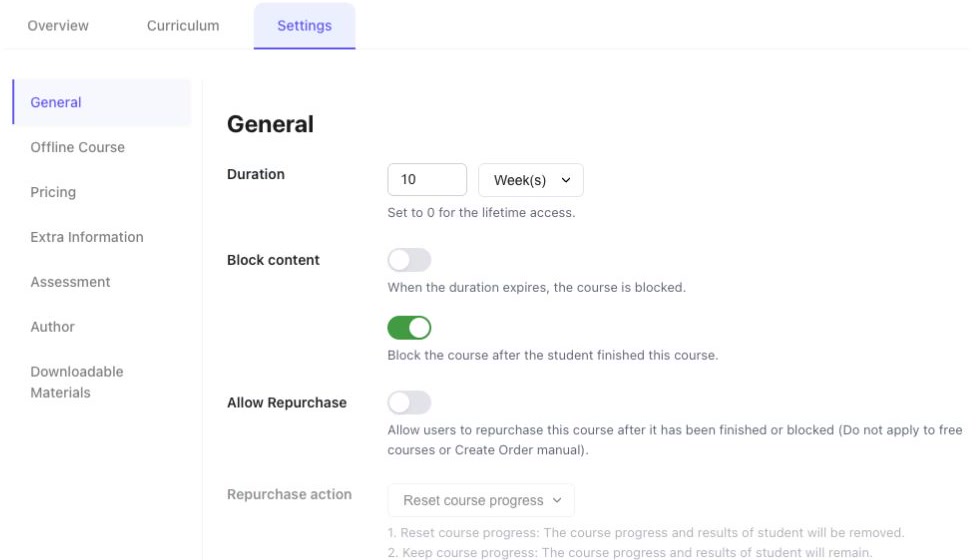
    Course duration and blocking settings
    Access settings must match the conditions described on the course page. Select the image to enlarge it.

    On mobile #

    Use a desktop browser for arranging the curriculum and changing detailed course settings. On a narrow screen, some controls can be clipped or fail to expand. Select Desktop above to read the editing instructions.
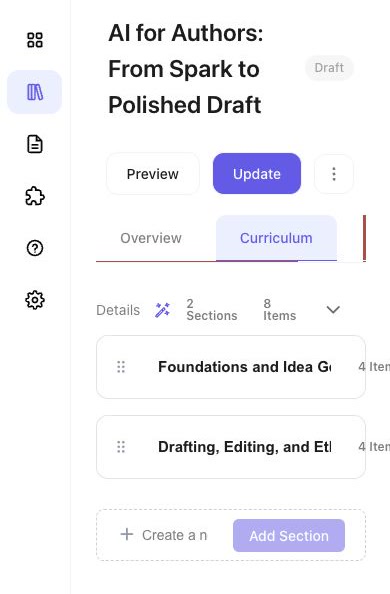
    Course builder on a narrow screen after collapsing its sidebar
    Narrow-screen course builder. Some controls extend beyond the available width. Select the image to enlarge it.

    Decide what happens on repurchase #

    If Allow Repurchase is enabled, review Repurchase action:

    • Reset course progress removes the previous progress and results.
    • Keep course progress preserves them.
    • Open popup lets the learner choose through the confirmation shown.

    The editor states that this setting does not apply to free courses or manually created orders. Make the chosen behaviour clear before learners repurchase.

    Add downloadable materials #

    1. Open Settings → Downloadable Materials.
    2. Use Add Course Materials and select the intended files.
    3. Follow the file types, size and count limits displayed in that form. These limits can depend on site settings.
    4. Save, then verify that the intended files and labels appear for the intended course audience. Use meaningful filenames and avoid uploading internal or unrelated documents.

    Check the delivery format #

    Offline Course changes the available learning behaviour. The editor warns that enabling it disables online features including curriculum, finishing, retakes and repurchase controls. Use it only when the course’s delivery format requires it, and review the displayed location or delivery information.

    Interface reviewed on 12 November 2026. Screens shown are from the development environment.

    Previous guideSet course assessment and completion rulesNext guideSet a course price and review publication
    What are your Feelings

    Share This Article :

    • Facebook
    • X
    • LinkedIn
    • Pinterest
    Still stuck? How can we help?

    How can we help?

    Updated on 13.11.2026
    0%
    Table of Contents
    • On desktop
    • On mobile
    • Decide what happens on repurchase
    • Add downloadable materials
    • Check the delivery format

    More help

    • Open the Instructor Panel and prepare a course
    • Build a course curriculum
    • Set course assessment and completion rules
    • Set a course price and review publication
    Total Project Management Framework

    Map the work. Run the steps. Own the decision.

    Framework

    Framework overviewTPM Lifecycle Map
    • Project Steps
    • Tool Levels

    Approach

    ParadigmManifestoResearch & Evidence

    Learning

    Learning with TPMAll coursesOur instructorsBecome an instructor

    Community

    BlogEvents

    About

    About TPMFounderTraining casesTeam

    Workspace & help

    My workspaceMy membershipMembership levelsGetting started
    EnglishРусскийУкраїнська
    Public offerPrivacy+380 98 019 07 89[email protected]

    Login with your site account

    Lost your password?

    Not a member yet? Register now

    Register a new account

    Are you a member? Login now