


← All help topics · Practitioner
Work on the step, consult its explanation and ask for help without losing the context of the project.
On desktop #
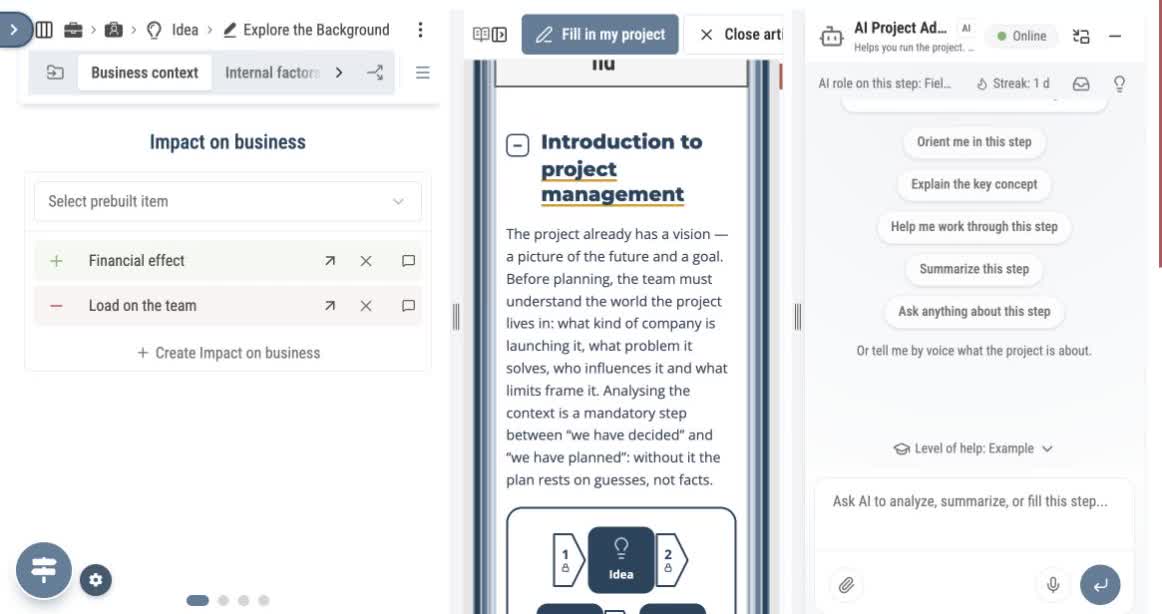
- Open a project step. The breadcrumb identifies the project, phase and step.
- Open Workspace layout in the breadcrumb.
- Choose Three-pane to keep the step, article and AI assistant side by side. Choose Practice for the step and AI, with the article on demand. Choose Theory beside for the article beside the step.
- Use the tabs inside the step to move between its records. The next-tab arrow reveals tabs that do not fit. A tab is part of the current step, not a different project.
- Close or minimise a panel when you need more room. Use its opening control to bring it back.
On mobile #
- Open the project step. The step is your main working surface.
- Tap Open AI Project Administrator to bring up the AI panel.
- Minimise AI to return to the step. Tap Theory of this step in the step toolbar to open the article. You can also use Read theory alongside from the AI panel. On a phone, the article opens as a panel.
- Use Close article to return to the previous view. Minimise the AI panel to return to the step.
- Move between record tabs inside the step. Scroll the current panel when content continues below the screen.
Read the method beside your work #
The article explains the current step. Fill in my project returns you to applying it. Use the article’s structure to find a particular explanation. For the relationship between phases and steps, open the Lifecycle Map.
Read and edit a longer project description #
In Explore the Background → Business context, Company description can hold several paragraphs. Keep the company context, proposed work and constraints together in a readable description.
- Open Context details if the section is collapsed.
- Edit Company description. Use paragraphs to separate the company background, proposed initiative and operating constraints.
- Move to another area, then return to check the text. Reopen or reload the step when you need to verify that your latest changes were saved.
- Open Business context. This view is divided into four horizontal panels.
- Use the third pagination dot below the panels to reach Context details. Scroll back to the field if the pagination control is below the visible area.
- Tap Company description. Scroll inside the field to read the remaining paragraphs; scrolling the page moves the surrounding panel.
- After editing, leave the field and return to check your text. Reopen the step to confirm the saved result.
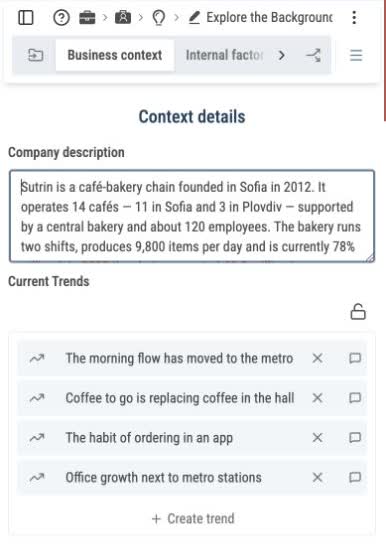
A description may be longer than the field’s visible height. Check its end before assuming that the text is missing.
Edit a goal in the side panel #
For a detailed goal, use the side panel to keep the outcome and its measurement criteria together.
- In Explore the Background → Business context, choose Practice and minimise AI if the workspace is narrow. Open Scope revision beside Charts.
- Find the goal under Strategic Project Goals or Non-Strategic Project Goals. Hover over its card to reveal Open in side peek, then select the arrow.
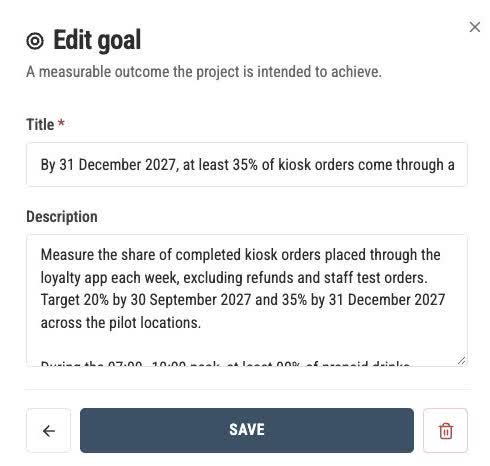
- Review Title and describe the metric, target, deadline and verification method in Description. Scroll within a long field to reach its remaining text.
- Select Save. Reopen the goal to check the saved values. The title and two-paragraph description in this example were also checked after reloading the step.
Edit a PESTEL factor and find it again #
Open your project map, choose Research, then Macro Factors Analysis. The example below uses the small coffee-chain demo copy. Use Theory of this step for the method itself.
Edit on desktop #
- In PESTEL analysis, select the factor card. Alternatively, open PESTEL summary table and use the row’s Open in side peek arrow.
- Review the factor and category. Scroll inside the form to reach Baseline value, Current value and Unit.
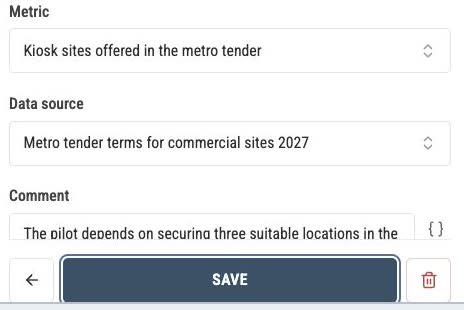
- Keep the observation clear: for example, baseline 6, current 8 and unit “kiosk sites”. Check the linked Metric and Data source.
- Use Comment for the implications, conditions and next review. A multi-paragraph comment can extend beyond the field’s visible height; scroll inside the text box to read it.
- Choose Save. Reopen the factor to check the result. Reloading and reopening the step also lets you verify that the saved text is retained.
Find a factor in the summary table #
- Open PESTEL summary table. Use Category to narrow the records, for example to Political.
- Enter part of the factor name in Search…, such as “metro”. An unmatched search produces an empty result.
- Clear the search and return Category to its unfiltered state to see the other groups again.
Edit on mobile #
- Open PESTEL analysis. Use the pagination controls beneath the board to reach the category you need, then tap its factor card.
- The factor opens in a form over the step. Review the name, category and fields near the top.
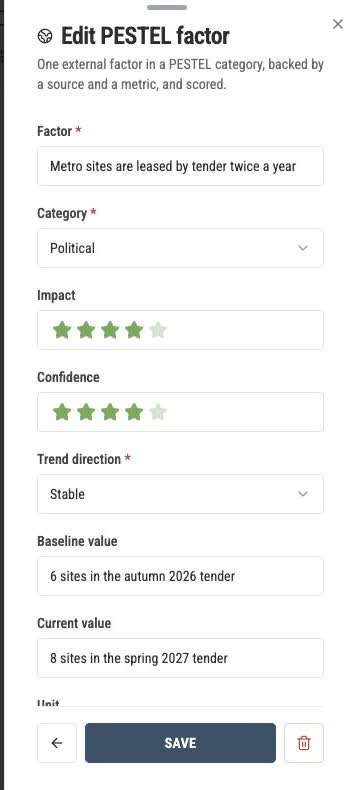
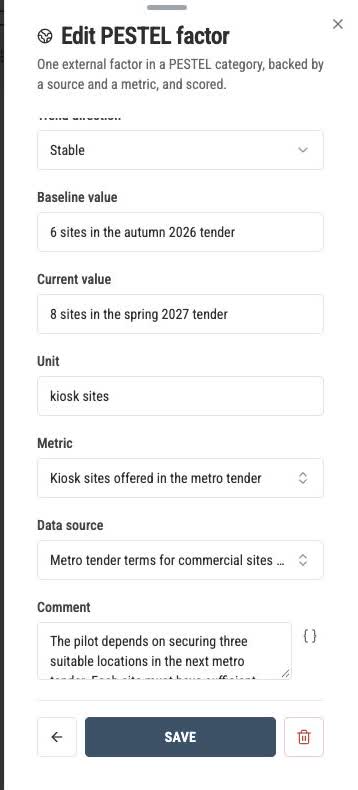
- Scroll inside the form to reach Unit, Metric, Data source and Comment. Scrolling the page behind the form does not reveal these fields.
- Enter a useful comment with the context, constraints and next action. To read a longer comment, scroll inside the comment box itself.
- Tap Save, reopen the factor and check the saved values. The example was checked after reloading with a two-paragraph comment.
Read the other table columns #
In PESTEL summary table, a narrow screen displays the factor name and a subset of columns. Use the numbered Column set controls below the table to move between these subsets. In the seven-field example, set 1 shows Trend direction and set 6 shows Comment. The factor name stays visible so you can identify the record.
When the screen feels crowded #
First identify which area you are scrolling: the step, the article or the AI conversation. Then choose a layout for the task you are doing. Reading a long explanation is easier in Theory beside; entering records with occasional help suits Practice. On mobile, close the top panel before trying to interact with the step behind it.
Interface reviewed on 12 November 2026. Screens shown are from the development environment.


